Changing your Webmail password
It is good practice to occasionally change your webmail password. It is easy to do via the Webmail portal.
Changing your email password is easy. Follow the steps below and you’ll have it changed in no time.
Please note, that changing the password will also require any IMAP or POP settings in your email clients to be updated as well, these will fail to authenticate with the old password.
Log in to your Webmail client by visiting webmail.yourdomain.com, replacing yourdomain.com with your account's primary domain name. If you are taken straight to your inbox, use the Webmail Home icon in the left menu.
Towards the bottom of the screen, click the "Password & Security" option.
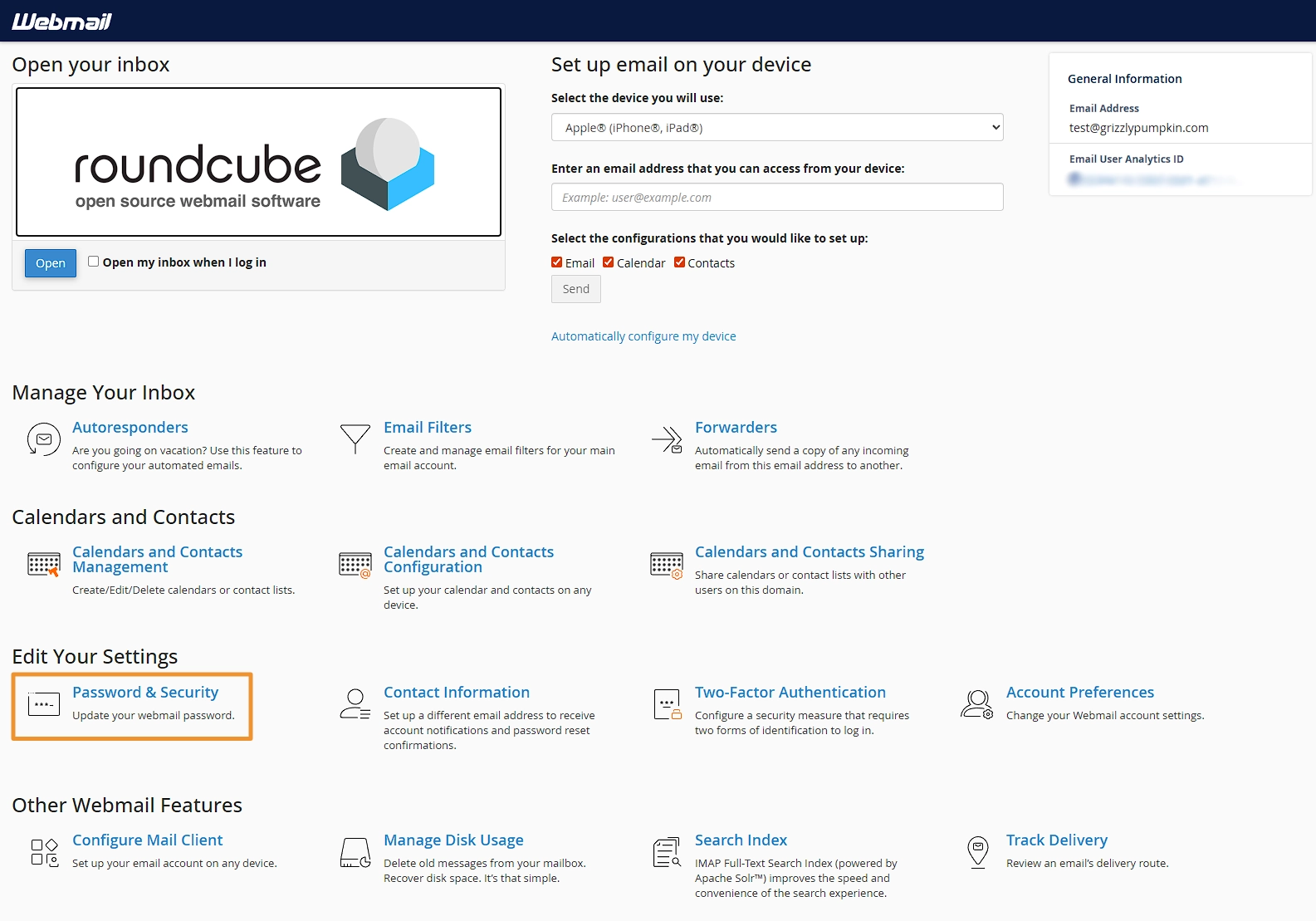
This will take you to a form to enter your new password. Please note, that if your password is not secure enough it may fail to save. You can use the Password Generator to create a strong, random password.
Related Articles

Setting up an email forwarder
Our hosting supports mailbox-level and domain-level email forwarders. Here is how to configure them.
Accessing your webmail
All of our shared hosting packages come with a feature-rich Webmail portal. Here is how to access it.

Creating an autoresponder via Webmail
Autoresponders are a handy tool to let people know you're out of the office. They're easy to configure too!