Access your email on your phone or another email client
Configuration to access your email from your phone or another email client.
You'll need to find the supporting help documentation for your specific device or email client. However, once you get to a screen to enter your IMAP or SMTP details, you can use the settings below replacing yourdomain.com with your email domain name.
IMAP Settings
Username: <full email address>
Password: <your email password>
Host: mail.yourdomain.com
Port: 993
Security: SSL/TLS/STARTTLS
SMTP Settings
Username: <full email address>
Password: <your email password>
Host: mail.yourdomain.com
Port: 465
Security: SSL/TLS/STARTTLS
Accessing settings from Webmail
You can also find these settings, with the correct domain to use, by logging into your Webmail client and going to the client settings section.
Log in to your Webmail client by visiting webmail.yourdomain.com. If you are taken straight to your inbox, use the Webmail Home icon in the left menu.
Towards the bottom of the screen click the "Configure Mail Client" option
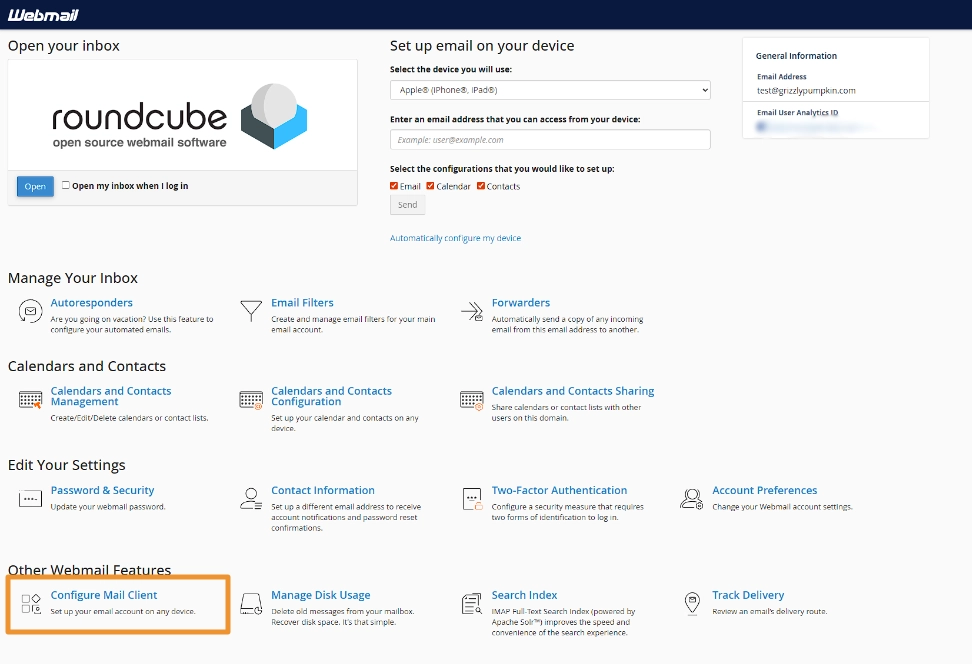
This will then provide you the settings you can use, as well some pre-configuration links for some devices. If you would like the settings sent to another email you have, for easier copying on mobile, you can use the Email Instructions feature at the bottom.
Please note, that POP3 is also available, however, we typically recommend using IMAP as this ensures your emails are also stored on the server and included in the regular backups. POP3 will download the file to your device, and remove it from the server.
Related Articles
Resetting a mailbox password
Need a webmail password reset for a mailbox? This guide shows cPanel users how to reset webmail password access for an email account, then sign back in through the Webmail portal.

Setting up an email forwarder
Our hosting supports mailbox-level and domain-level email forwarders. Here is how to configure them.

Creating an autoresponder via Webmail
Autoresponders are a handy tool to let people know you're out of the office. They're easy to configure too!