Setting up an email forwarder
Our hosting supports mailbox-level and domain-level email forwarders. Here is how to configure them.
There are two types of forwarders supported by our hosting packages: an email mailbox forwarder, which is applied to a single mailbox, and a domain forwarder, which forwards all email sent to one domain on to another domain. These can be combined to ensure emails sent to any of your domains are forwarded to the primary domain, and then on to another mailbox.
Domain forwarders can only be configured through the main hosting control panel. An email mailbox forwarder can be configured either through the control panel or by the user via Webmail.
Domain Forwarders
Log in to the hosting control panel by visiting cpanel.yourdomain.com, replacing yourdomain.com with your account's primary domain name.
In the Email group click the Forwarders item.
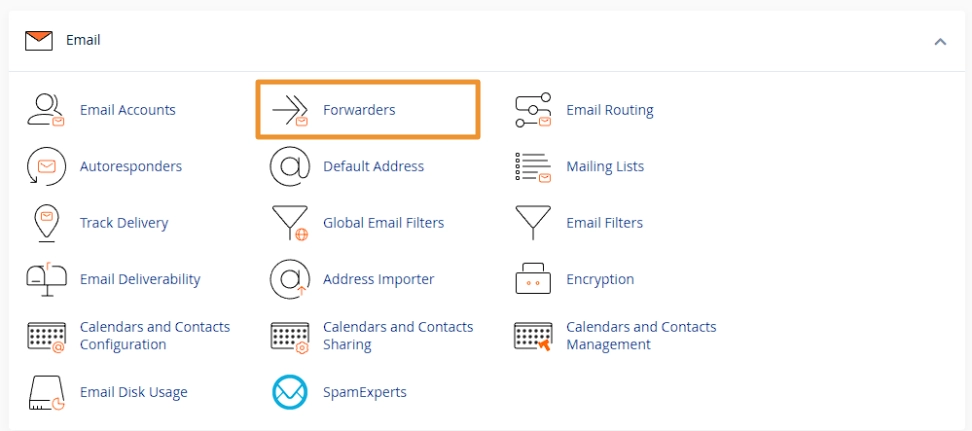
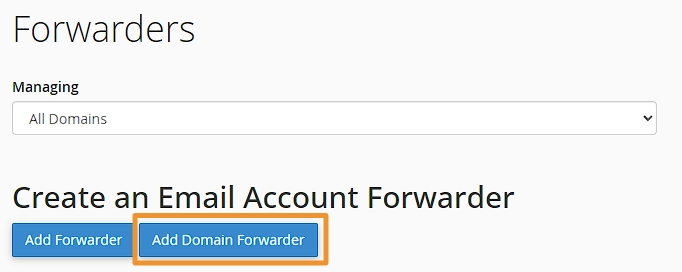
This will then list all forwarders configured on your account. To add a new domain forwarder, click Add Domain Forwarder. Please note that the domain you wish to forward must be configured as an Addon Domain on your account.
Select the domain you wish to forward, and then enter the domain you wish to forward to, these can both be on the same account. Any email sent to the source domain will be forwarded even if the mailbox does not exist.
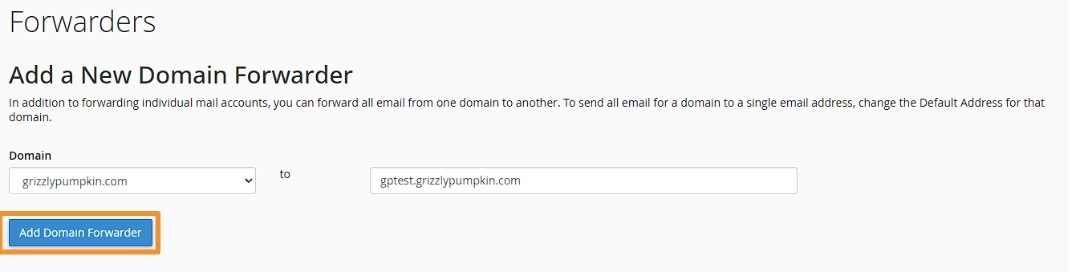
Click Add Domain Forwarder. This will then take you back to the list of forwarders and you should see your new forwarder in the list.
If you wish to delete a domain forwarder, click the Delete button next to the row.

Email Mailbox Forwarder
There are two ways to configure a mailbox forwarder: one as an admin with access to the control panel, and one as a user logged in to Webmail. The process is the same; only the route to get there is slightly different. We cover both below.
Log in to your hosting control panel by visiting cpanel.yourdomain.com or log in to Webmail by visiting webmail.yourdomain.com, replacing yourdomain.com with your domain.
Access the forwarders screen:
If you're logged in to the admin control panel, you can access this by clicking Forwarders in the Email group.
If you are logged in to webmail you can access this by clicking Forwarders under the Manage Your Inbox group. If you were taken straight to your inbox, you can use the Webmail Home link in the left menu.

This will now show a list of forwarders configured in the system. If you've access this screen as the hosting account admin, you'll also see Domain Forwarders.
Click Add Forwarder

Complete the form
As the hosting account admin, you'll need to enter the first part of the email address, and select the domain, then enter the email address to forward the email to.
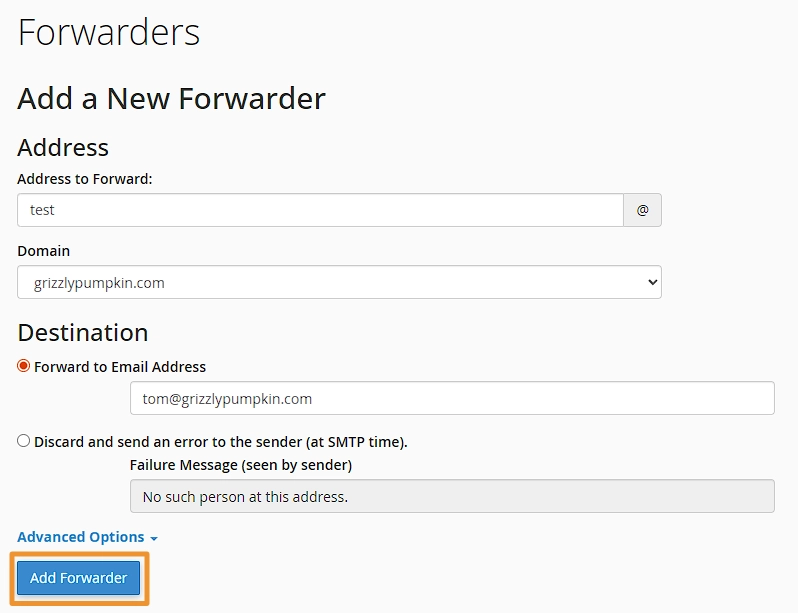
If you're logged in via Webmail, you'll only need to enter the email address to forward to.
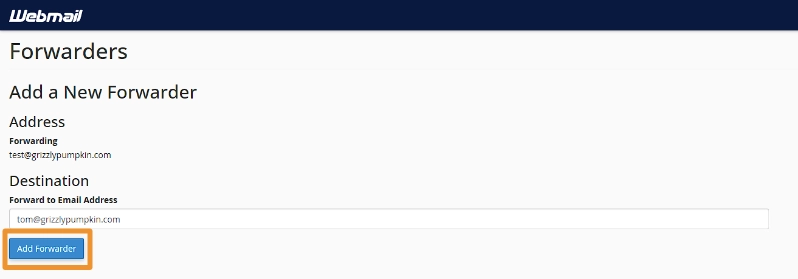
Click Add Forwarder this will now take you back to the list of forwarders.
If you would like to delete a forwarder, use the Delete button next to the forwarder row.

All emails will now be copied and forwarded to the forwarder email addresses.
Related Articles
Access your email on your phone or another email client
Configuration to access your email from your phone or another email client.

Creating an autoresponder via Webmail
Autoresponders are a handy tool to let people know you're out of the office. They're easy to configure too!